How to Use Google Shopping Ads for Ecommerce in 2026 (Full Guide)
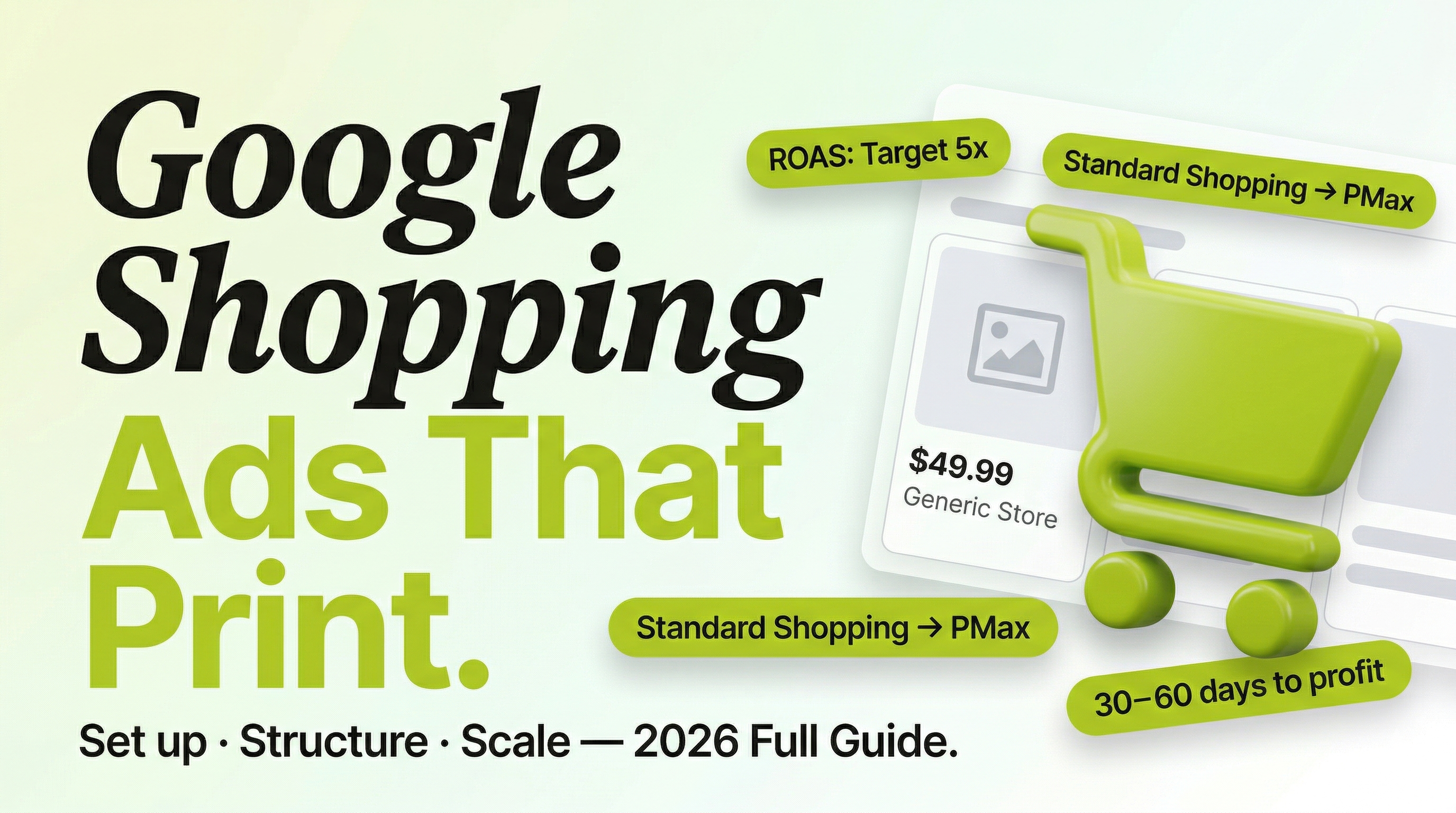
Google Shopping Ads are one of the most powerful paid advertising channels available to ecommerce brands, and one of the most underutilized. When set up correctly, they put your product image, price, and brand name directly in front of buyers who are actively searching for exactly what you sell.
This guide covers how Google Shopping Ads work, how to set them up, how to structure your campaigns, and how to scale them profitably.
How Google Shopping Ads work
Unlike Google Search Ads, where you bid on specific keywords, Google Shopping Ads are driven by your product feed. You submit a catalogue of your products to Google Merchant Center with details like title, description, price, image, and availability. Google then matches your products to relevant search queries automatically.
When someone searches for "white linen curtains Canada" and you sell white linen curtains, your product ad can appear at the top of the search results showing your product image, price, and store name. The buyer sees all of this before clicking, which means they self-qualify. If your price is too high or the product is not what they want, they do not click and you do not pay.
This self-qualification mechanism is what makes Shopping Ads so efficient. You pay for clicks from people who have already seen your product and price and decided they want to know more.
Setting up Google Merchant Center
Step 1: Create a Google Merchant Center account at merchants.google.com. Connect it to the same Google account you use for Google Ads.
Step 2: Verify your website by adding the Merchant Center verification tag or using Google Search Console to verify ownership.
Step 3: Submit your product feed. For Shopify stores, install the Google and YouTube app from the Shopify App Store. This automatically syncs your product catalogue to Merchant Center and keeps it updated when you change prices or inventory. For WooCommerce, use the Google Listings and Ads plugin.
Step 4: Fix feed errors. Merchant Center will flag any products with missing required attributes. The most common errors are missing GTINs, images that do not meet size requirements, and price mismatches between your feed and your website. Fix these before launching campaigns, as products with errors will not serve.
Standard Shopping vs Performance Max: which to use
Standard Shopping campaigns give you direct control over bidding, product grouping, and negative keywords. You can see exactly which search terms triggered your ads and exclude irrelevant ones.
Performance Max campaigns use Google AI to show your ads across all Google channels. PMax typically delivers better results for brands with enough conversion data, generally 30 or more purchases per month.
For most ecommerce brands in 2026, the recommended approach is to start with Standard Shopping to learn which products and search terms convert, then transition to Performance Max once you have enough conversion data to fuel the algorithm.
Campaign structure for Google Shopping
Separate campaigns by margin or product priority. Your best-selling, highest-margin products deserve more budget and attention than slow movers. Create separate campaigns for your top products and set higher target ROAS for high-margin items.
Use smart bidding from the start. Target ROAS bidding tells Google to optimise your bids to hit a specific return on ad spend target. If your break-even ROAS is 4x, set a target of 5x to leave room for profit.
Add negative keywords regularly. Check your search terms report weekly and add negative keywords for any searches that are not relevant to your products.
Optimize your product feed titles. Include the most important search terms in the first 70 characters. Put brand, product type, and key attributes at the front: "Brand Name Product Type Size Colour Material."
Budgeting for Google Shopping
A practical starting budget for Google Shopping for most ecommerce brands is $500 to $1,500 per month. Expect the first 2 to 4 weeks to be primarily data collection. Most well-configured Shopping campaigns reach consistent profitability between 30 and 60 days.
Measuring Google Shopping performance
- ROAS: Revenue divided by ad spend. Set your target based on your margin math before launching.
- Impression share: What percentage of eligible impressions your ads are winning. If you are losing impression share due to budget, your budget is the constraint.
- Search term report: Review weekly for irrelevant searches to exclude.
- Product performance: Which products are generating clicks and conversions versus which are spending budget without converting.
The bottom line
Google Shopping Ads are one of the most efficient channels for ecommerce brands with physical products. Start with Standard Shopping, optimize your product feed titles, use Target ROAS bidding from day one, and transition to Performance Max once you have 30 or more monthly purchases.
We manage Google Ads and ecommerce marketing for brands across Oshawa, Toronto, and Canada. If you are also running Meta Ads, our guide on Meta Ads vs Google Ads for ecommerce covers how to coordinate both channels for maximum return.